
Parental Controls for Your Home Network: Filter Web Content on Every Device
If you are a parent trying to set up parental controls on your home network, you have probably already discovered the frustrating truth: per-device controls do not work for long. Your child finds a workaround on their iPhone. A browser with a built-in VPN bypasses the filter on their tablet. A friend’s hotspot sidesteps everything you have configured on the home WiFi. The more devices there are, the more gaps appear.
The only approach that actually holds is controlling web access at the network level — at the point where all internet traffic passes through, regardless of which device is making the request. This guide explains how to set up parental controls for your home network, extend them to your children’s smartphones even when they are away from home, and do it without spending money on a subscription service.
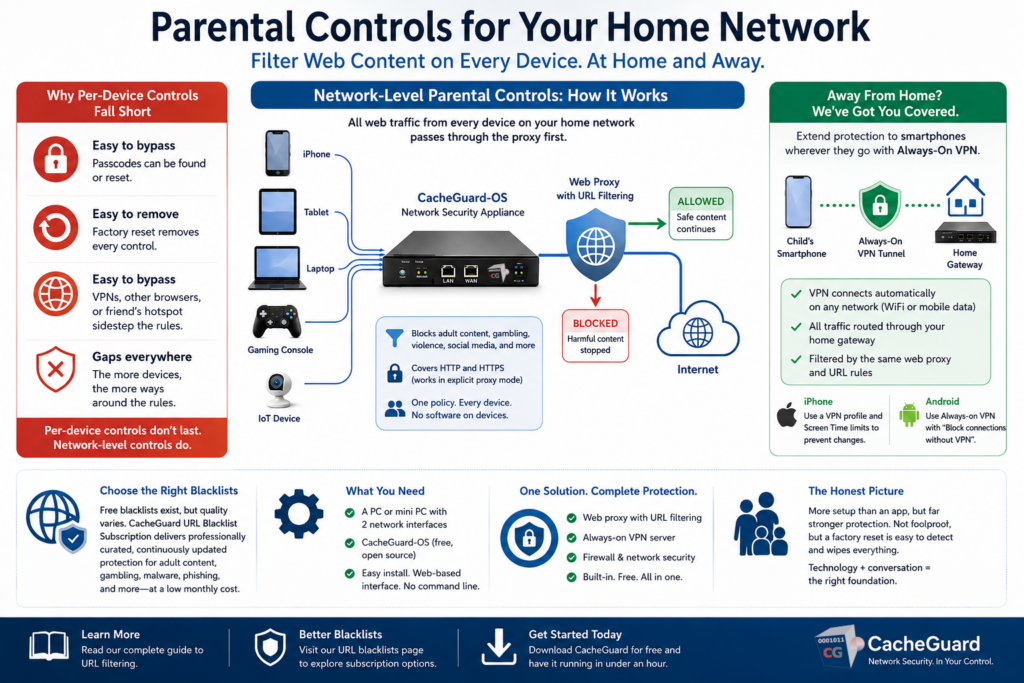
Why Per-Device Parental Controls Fall Short
Every major platform offers some form of built-in parental control. Apple’s Screen Time, Google’s Family Link, and Windows parental controls all let you restrict content on a specific device. These are useful tools — but they all share the same structural weakness: they are installed on the device, which means they are also vulnerable to what happens on the device.
A child who knows the Screen Time passcode can disable restrictions. A factory reset removes every control you have configured. A second browser app downloaded from the App Store may not respect the same filters as Safari. A personal hotspot from a friend’s phone bypasses your home WiFi rules entirely.
None of this is hypothetical. It is the everyday experience of parents who have relied on device-level controls alone.
Network-level parental controls work differently. They are not installed on any child’s device. They sit between your home network and the internet, and every request — from every device, regardless of brand, OS, or browser — passes through them. There is nothing on any device to disable, bypass, or reset.
Parental Controls at the Home Network Level: How It Works
A network-level content filter uses a web proxy sitting at your internet gateway. When a device on your network tries to visit a website, the request goes through the proxy first. The proxy checks the destination URL against a list of blocked categories — adult content, gambling, violence, social media, or any category you choose — and either allows or blocks the request before it reaches the device.
This approach covers every device on your network simultaneously. Your child’s iPhone, their tablet, the gaming console, a laptop borrowed from a friend, any device that connects to your home WiFi is subject to the same filtering rules. You configure the policy once, in one place, and it applies everywhere.
It also covers HTTPS traffic. Modern web content filtering does not require decrypting HTTPS connections to enforce URL-based policies. In explicit proxy mode, the browser sends the destination address to the proxy in plain text before the encrypted connection is established — giving the proxy everything it needs to apply category-based rules without reading the encrypted content of the pages.
One additional enforcement measure is worth adding. When a web gateway also includes a built-in firewall — as most network security appliances do — you can add a simple rule that blocks any outbound HTTPS traffic not routed through the proxy. Without this rule, a technically savvy child could configure their device to bypass the proxy and connect directly to the internet, circumventing the filter entirely. With the rule in place, any such attempt is silently blocked at the gateway. The proxy becomes mandatory, not optional, for every device on the network.
Redirector websites — web-based proxy and anonymizer services that children sometimes use to route their traffic through an external server and bypass content filtering — can also be blocked at the gateway level. Most URL category databases include a dedicated anonymizer or proxy category for exactly this purpose. Blocking that category closes the last practical workaround available to a child trying to access filtered content from inside your network.
For a deeper explanation of how URL filtering works at the technical level, see our complete guide to URL filtering.
Extending Parental Controls to Smartphones Away From Home
The most common gap in home network parental controls is the one that opens the moment your child walks out the door. Their smartphone switches from your home WiFi to mobile data — and all your carefully configured rules no longer apply.
There is a solution to this, and it requires one additional feature: a VPN server running on your home network gateway.
A VPN (Virtual Private Network) creates an encrypted tunnel between a device and a server. When a smartphone is connected to a VPN, all its internet traffic is routed through that server — which means it is subject to whatever security and filtering rules are applied at the server end.
If your home gateway runs both a web proxy with content filtering and a VPN server, the setup is this:
- Each child’s smartphone is configured with a VPN profile connecting to your home gateway
- The VPN is set to always-on — it activates automatically whenever the device connects to any network, including mobile data
- All traffic from that smartphone is routed through your home gateway, through the web proxy, and subject to the same URL filtering rules as if the child were sitting at home
On iPhone, you can configure a VPN profile and use Apple’s Screen Time and Family Sharing features to restrict VPN settings and prevent your child from disabling it. On Android, the always-on VPN option with the “Block connections without VPN” setting can be found in the VPN section of your Android network settings — once configured with a parental PIN on the phone, a child cannot disable it without factory resetting the device.
This is not a theoretical workaround. It is the same principle used by organizations to enforce acceptable use policies on employee devices outside the office. Applied at home, it means your content filtering follows your children’s smartphones wherever they go.
Choosing Your URL Blacklists
A URL filter is only as good as the list of blocked URLs it works from. Free community-maintained blacklists exist and can be imported into your gateway, but they vary significantly in quality, coverage, and update frequency. For a parental control use case — where blocking adult content reliably is the primary goal — an outdated or incomplete blacklist is a real gap.
For parents who want a professionally maintained solution, the appliance described in the next section includes an optional URL blacklist subscription at a modest monthly price. It covers adult content, gambling, violence, malware, phishing, and many other categories — the same type of threat intelligence used in commercial network security products. It costs less per month than a streaming service and removes the need to manage or update URL lists manually.
What You Need to Get Started
The solution described in this guide is built on a free, open-source network security appliance. A network security appliance is a dedicated device that sits between your internet connection and your home network, handling all the routing, filtering, and VPN functions from one place.
You need:
- A machine to run it on — any standard PC or mini PC with two network interfaces. An old desktop or a small fanless mini PC works perfectly. The hardware requirements are modest.
- CacheGuard-OS — a free, open-source operating system purpose-built as a network security appliance, running on Linux. It installs like any OS from a downloaded image. It includes the web proxy, URL filtering, VPN server, firewall, and all other features described in this guide in a single integrated package. You can download CacheGuard for free from the official website.
Installation takes under an hour. Configuration is done through a browser-based web interface — no command line required. Once it is running as your network gateway, every device that connects to your home network is automatically subject to your content filtering rules.
For a broader overview of what a network security appliance does, see our guide to UTM appliances.
Parental Controls on Your Home Network: The Honest Picture
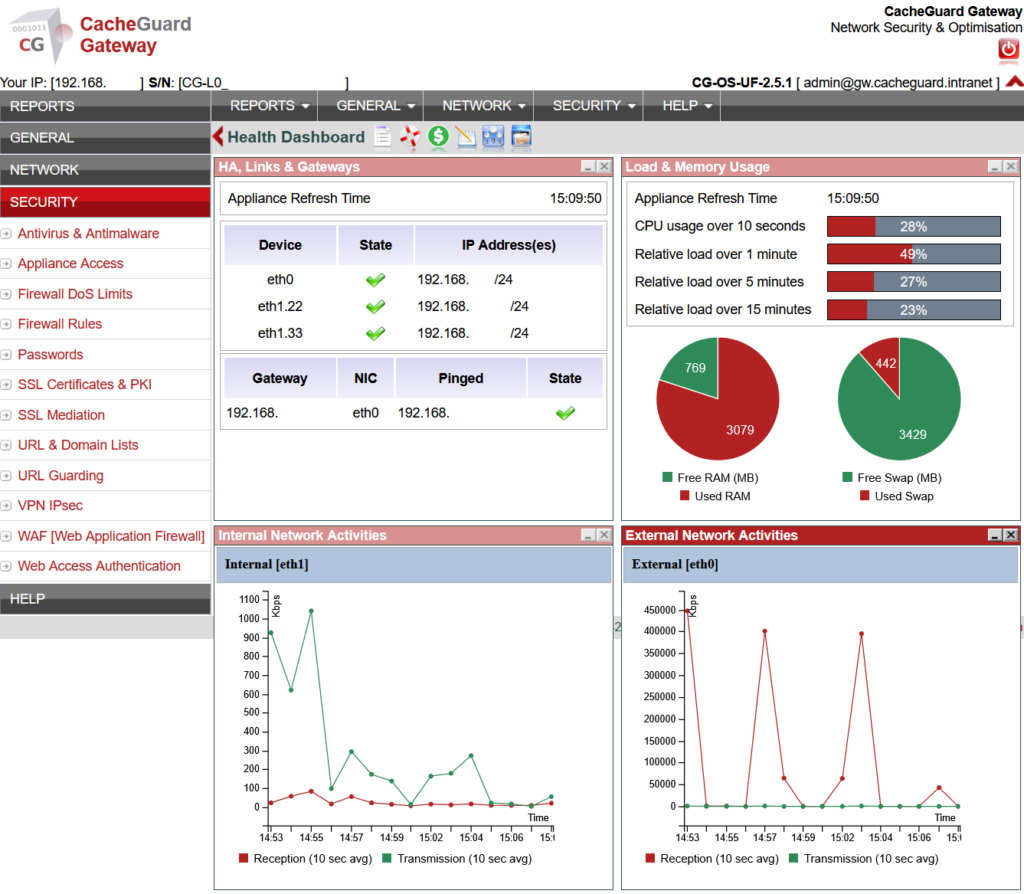
This solution requires more initial setup than a consumer parental control app. You are configuring a network gateway, not installing an app on a phone. If you are comfortable setting up a home router, you will find the CacheGuard interface straightforward. If you have never touched network settings before, it will require a learning investment.
The always-on VPN extension is also not foolproof. A determined teenager who factory resets their phone removes the VPN profile — and with it, the filtering. But a factory reset is a drastic action that is easy to detect, and it eliminates all other data on the device too. For most families, the combination of network-level filtering and a well-configured always-on VPN provides a level of control that per-device solutions simply cannot match.
No parental control system replaces conversation. But having a reliable technical foundation — one that does not depend on a child respecting a passcode — gives that conversation the right context. The filter is not something to fight. It is just how the network works.
Want to learn more? Read our complete guide to URL filtering for a technical breakdown of how content filtering works, or visit our URL blacklists page to explore subscription options. Ready to get started? Download CacheGuard for free and have it running today.
Questions about deploying CacheGuard? Visit the community forum at help.cacheguard.net or browse the full documentation at CacheGuard Documentation.